



CS2 Radar Settings Guide
Radar in Counter-Strike 2 gives players important information about teammates and opponents on the map. Like with many other game aspects, the CS2 radar settings are pretty flexible and allow you to make various adjustments for your best comfort and the best results.
CS2 is a highly competitive game, and you need to take care of many things at the same time to overplay your opponents. Perfect aim, great map knowledge, mastery of tricky movements, and flawless team communication lead you to success. Radar is a source of info that boosts these elements and lets you combine them into the best possible in-round tactics.
Sure, nothing can replace concise and clear communication via voice chat. However, seeing what’s happening around is quicker and more effective in such a fast-paced game.
Make radar your best tool in CS2 with the optimal settings. Everything you need to know is in this guide on DMarket Blog. And if you want to boost your movement skills, learn how to surf in CS2.
Why is Radar Important in Counter-Strike 2?
There are a few basic types of information players get from radar in CS2.
- Position of your teammates. You will see blue (CT) or yellow (T) dots on the CS2 radar that clearly show where other members of your current team are.
- Position of your opponents. They are hidden by default, but when any of your teammates see opponents, red dots appear on the radar. When the visual contact is over, you see a question mark. This indicates places where the opponents disappear, like they took a turn or killed your teammate.
- Dead players are shown with X signs. It’s another important piece of info, as it shows where shootings occurred and how they ended.
- Bomb position is also revealed if it is spotted by your teammates on the CT side. You can see a bomb carrier and try to predict Terrorists’ plans. You need this info as a T player as well, especially within random teams of online matchmaking.
Beginners to the game may use the radar for better orientation on CS2 maps. In a way, this HUD element helps players learn the location—but with reasonable practice, you will have a map image in your head and will not need this extra help.
What You Need to Change in CS2 Radar Settings
Adjustments to the game settings are directly connected to the purposes of the CS2 radar.
-
Decrease the zoom. It is crucial to see the map around you. With a high level of zoom, the radar gives you very little information, to the point that it reflects things you see directly on the screen. The zoom should be decreased to display as much of the map on the CS2 radar as possible.
-
Make the radar bigger. You need to see the radar elements clearly after looking at them really quickly. With low zoom, it is a good idea to increase the radar size.
These aspects are the main elements of the best CS2 radar settings. Changes to other aspects depend on your personal preferences.
-
Radar rotations may be annoying, especially if you know the game maps well and follow esports competitions. Many players prefer to turn this option off. However, you may feel differently. When the radar is rotating, it may help beginners to orient themselves in the location—and then, you may get used to this feature.
-
Centering the radar around the player is not the best decision as it crops the map when you are on the edges. Imagine camping around bombsite B on Inferno and not seeing what’s going on with your teammates around Banana. At the same time, with low zoom, the role of this specific radar setting decreases, as you see a lot regardless of your position. Choose the option that feels better for you in the game.
-
Alternate zoom can be activated with a special key, and you can set it in the CS2 radar setting menu. Using this option may be helpful if you don’t want to have a too big radar on the screen and you don’t see the radar elements properly with low zoom. Press the alternate zoom key and see everything clearly. The opposite use is also possible.
How to Set Up a New Radar in CS2
Counter-Strike 2 substantially simplified adjustments to the game settings. There is no real need to use console commands unless you just prefer this way. Everything related to the CS2 radar settings is in the convenient game menu.
Here is a step-by-step guide on how to set up a new radar in CS2. Follow it to make the necessary changes.
- Launch the game and click the gear icon in the upper left corner.
- Head to the tab Game.
- Scroll to the Radar section or press the respective tab in the upper menu.
- Adjust the CS2 radar settings.
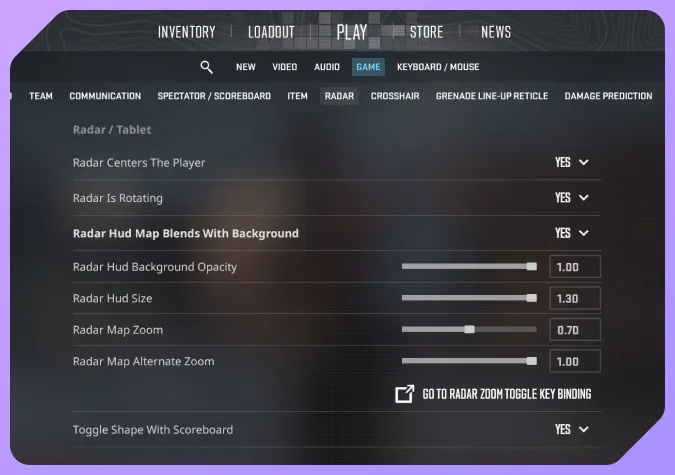
The radar-related console commands can be used as well; some players prefer them. For example, you can use them on a new computer by adding the commands to the console. It is similar to how the CS2 launch options work.
The Best Radar Settings for CS2
Now that you know the purposes of the game radar and how to optimize it, you’ll have no problem figuring out the best radar settings for CS2.
Here is the optimized CS2 radar in the game settings menu.
- Radar Centers The Player: No
- Radar Is Rotating: No—Feel free to change this, as this option depends on your preferences.
- Radar HUD size: 1.2—The range is from 0.8 to 1.3. Go to the highest size if the radar covering the main view doesn’t bother you.
- Radar Map Zoom: 0.5—The range is from 0.4 to 1.00. Go for a slightly bigger value if you have difficulties seeing elements on the radar. The HUD size and zoom should be optimized for your best comfort.
- Radar Map Alternate Zoom: 1—Leave the default 1 here, so when you press the Zoom Toggle Key (it’s not set by default, use the link in the game to do so), you will see the high-zoomed radar. It may be helpful when everyone is crowded around you and you need to figure out small details.
- Toggle Shape With Scoreboard: Yes—The radar takes a rectangular form when you activate the scoreboard (with Tab). It shows the full map.
The radar is part of the best CS2 settings: we have a dedicated guide on every option, so check it out.
Optimized Radar Settings: CS2 Console Commands
Using console commands for optimizing radar settings may be helpful for various reasons. For example, to set up your CS2 radar on a new computer, just copy and paste the set of commands.
One option is unique here. The command cl_radar_icon_scale_min sets the scale of icons on the radar. You can increase it slightly, but that is not a crucial factor. Also, the command cl_radar_scale has a bigger range than the Radar Map Zoom option in the game settings menu: it’s from 0.25 to 1.
Here are the optimized CS2 radar settings in the form of console commands.
- cl_radar_always_centered 0
- cl_radar_rotate 0
- cl_radar_scale 0.5
- cl_hud_radar_scale 1.2
- cl_radar_icon_scale_min 1
- cl_radar_square_with_scoreboard 1
The Default Radar Settings in CS2
It is super easy to reverse all the changes in the game settings.
- Open the CS2 settings menu.
- Press the Reset button in the lower right corner.
- Confirm the action.
Note that this will reset all the settings, not only radar-related. If you need to return to the default for your radar only, here’s the list of values for every option.
- Radar Centers The Player: Yes
- Radar Is Rotating: Yes
- Radar HUD size: 1.00
- Radar Map Zoom: 0.7
- Radar Map Alternate Zoom: 1
- Toggle Shape With Scoreboard: Yes
In the form of CS2 radar console commands, the default list is below.
- cl_radar_always_centered 1
- cl_radar_rotate 1
- cl_radar_scale 0.7
- cl_hud_radar_scale 1
- cl_radar_icon_scale_min 0.6
- cl_radar_square_with_scoreboard 1
Various console commands can be used for different purposes. For example, you can even try to kick yourself by using specific info from the console.
The CS2 radar gives players info on the positions of teammates and opponents, on where the bomb or the bomb carrier are, and where shootings occurred. The general idea for the best CS2 radar settings is to decrease the zoom to see a bigger piece of the map and scale up the radar HUD size to make the elements more visible. It is possible to optimize the radar settings in CS2 via the game menu or special console commands.
If you’re trying to measure your real performance in Counter-Strike 2, learning about ADR is essential. Read our full breakdown of what ADR means and how to increase it.
Trade on the go - install the mobile app of DMarket from Google Play or App Store. Never miss great prices and unique skins. The best CS2, Dota 2, Rust and TF2 marketplace is always at hand!
Follow us on and to get more useful guides and reviews about CS2!