

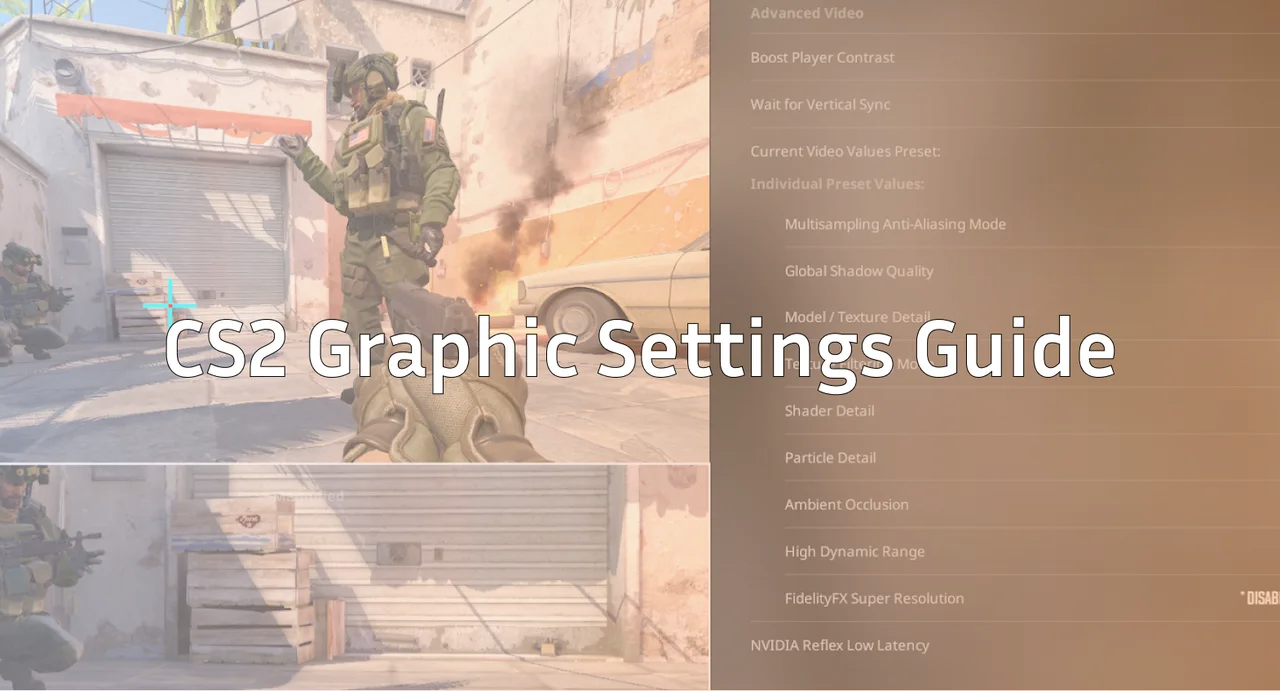
Counter-Strike 2 looks incredible, but when you’re in a 1v1 on Inferno, you want max FPS, zero stutters, and crystal-clear enemies—not cinematic lighting.
In this guide, we break down the best CS2 video settings, best CS2 graphics settings, and the best CS2 settings for FPS based on performance testing and what top pros use.
If you’re climbing the CS2 ranks, grinding Premier, or learning maps like Mirage or Anubis, these settings will help you see enemies sooner and react faster.
Why Graphics Settings Matter in CS2
Source 2 introduced:
- Global illumination
- Better lighting
- More demanding particles
- High-end anti-aliasing
And with smoke reworks and volumetric effects, FPS drops are more common than they were in CS:GO.
That’s why optimizing settings is just as important as learning CS2 callouts on maps like Dust 2 or Vertigo.
Best CS2 Graphics Settings (Recommended for Most Players)
These settings give a great mix of visibility, stability, and FPS.
| Setting | Recommended | Why |
| Display Mode | Fullscreen | Lowest input lag |
| Aspect Ratio | 16:9 or 4:3 Stretched | Preference/FPS |
| Resolution | 1920×1080 or 1280×960 | Clarity vs. FPS |
| V-Sync | Off | Removes delay |
| Global Shadow Quality | Low | Clean player shadows |
| Model / Texture Quality | Low | Frees GPU usage |
| Texture Filtering | Bilinear | Clear + Lightweight |
| Shader Quality | Low | High FPS impact |
| Particle Quality | Low | Less clutter |
| Ambient Occlusion | Off | Pure FPS boost |
| Anti-Aliasing | MSAA 2x | Clean edges |
| FSR | Off | Causes blur |
| Boost Player Contrast | On | Huge visibility buff |
| HDR | Performance | Sharper clarity |
If you also want a performance jump outside graphics settings, check out the CS2 launch options guide for extra optimization.
Display Settings Explained
Fullscreen
Essential for competitive play. Anything else adds latency.
Resolution & Aspect Ratio
1920×1080 (16:9)
- Best for clarity
- Great for learning utility setups like Mirage smokes
1280×960 (4:3 Stretched)
- Better FPS
- Many pros prefer it
- Player models appear wider
If you’re experimenting with stretched resolutions, this ties well with the guide on CS2 stretched res.
Best CS2 Settings for FPS (Low-End PC Build)
If you’re fighting stutters or freezes, use this:
| Setting | Value |
| Model / Texture | Low |
| Shader | Very Low |
| Ambient Occlusion | Off |
| Particle Quality | Low |
| Anti-Aliasing | Off |
| Shadows | Low |
| HDR | Low |
| Resolution | 1280×720 or 1280×960 |
| NVIDIA Reflex | Enabled + Boost |
Pair this with troubleshooting guides like:
What Pros Use (Common Trends)
Across top pros—whether it’s s1mple, NiKo, ZywOo, XANTARES, m0NESY, or donk—there’s a pattern:
- Fullscreen
- Low settings
- MSAA 2x
- Boost Player Contrast ON
- 16:9 or 4:3 stretched
- 144–360Hz monitors
You can dive deeper through our pro setups:
These are extremely helpful if you want a consistent pro-like feel.
Advanced CS2 Video Optimization Tips
1. Enable NVIDIA Reflex
Lowers system latency—essential for peeker’s advantage situations (more on this in the Peeker’s Advantage guide).
2. Remove visual clutter using binds
For example: clearing blood decals improves visibility.
Guide: How to Clear Decals in CS2
3. Show FPS in real time
Use the CS2 FPS counter to track performance:
→ Show FPS in CS2 Guide
4. Update GPU drivers
CS2 relies heavily on driver optimization.
5. Practice your utility with clean visuals
When practicing smokes or lineups, use:
→ CS2 Practice Commands
→ CS2 Smoke Practice Commands
Balanced Build (Great for Premier Players)
If you want clarity + FPS:
| Category | Setting |
| Resolution | 1920×1080 |
| MSAA | 2x |
| Shadows | Low |
| Textures | Medium |
| Shader | Low |
| Ambient Occlusion | Off |
| FSR | Off |
| Boost Player Contrast | On |
Great for players learning competitive rotations or map sides like:
Visibility Tips Most Players Don’t Use
Increase Digital Vibrance (NVIDIA)
80–100% makes enemies pop.
Stick to simple skins
Bright skins can distract. If you inspect skins often, see the CS2 inspect link guide.
Avoid HUD clutter
Minimal HUD looks clean.
→ CS2 Hide HUD
Troubleshooting Common FPS Issues
If your FPS drops, you may be dealing with network or hardware issues:
These solve the majority of stutters and slowdowns players report.
Frequently Asked Questions
What are the best CS2 settings for FPS?
Low textures, low shaders, low shadows, MSAA 2x, fullscreen, boost contrast ON.
Is 4:3 stretched better?
It’s preference. Many pros use it. Try it and see if it fits your style.
Is Boost Player Contrast worth using?
Yes. It improves enemy visibility dramatically.
Do higher graphics help in competitive play?
Not really. CS2 remains balanced at all settings.
Final Thoughts
Optimizing your graphics settings can massively improve how you experience CS2—especially in tight fights or intense late-round situations. Combine these settings with strong fundamentals, like good crosshair placement and map knowledge.
You may find these guides helpful next: