



Keeping an eye on your FPS (frames per second) in Counter-Strike 2 is essential for consistent gameplay, smoother aiming, and better overall performance. Whether you’re troubleshooting frame drops or optimizing settings, this guide will show you exactly how to see FPS in CS2 using different methods — from console commands to Steam’s built-in tools.
Why You Should Show FPS in CS2
FPS determines how smoothly the game runs. Higher FPS means more responsive movement and better visibility in clutch situations. Monitoring your FPS helps you:
- Identify performance drops
- Compare graphics settings changes
- Optimize gameplay on different maps
- Diagnose lag or stuttering
If you often notice your game freezing or lagging, also check out our CS2 Freezing Fix Guide.
Method 1: Show FPS in CS2 Using Console Command
The easiest and most accurate way to show FPS in CS2 is through the developer console.
Step-by-Step:
- Enable Developer Console
- Open CS2
- Go to Settings → Game → Enable Developer Console (~)
- Set it to Yes
- Open CS2
- Open Console
- Press the ~ (tilde) key on your keyboard.
- Press the ~ (tilde) key on your keyboard.
- Enter the FPS Command
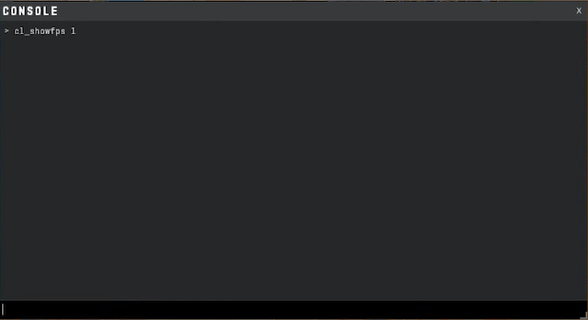
- Use cl_showfps 1 for FPS only or net_graph 1 for full network and FPS data.
Tip: To disable it later, type cl_showfps 0.
If you’re experimenting with other commands like god mode or infinite money, check out our Infinite Money CS2 Command Guide.
Method 2: Use Steam Overlay to See FPS in CS2
Steam offers a quick, overlay-based way to see your FPS across all games, including CS2.
Here’s how:
- Open Steam → Settings → In-Game
- Find In-Game FPS Counter
- Choose a display position (e.g., top-left or bottom-right)
- Click OK and start CS2
The FPS counter will appear during gameplay without needing any console command.
Method 3: Use the net_graph Command
For players who want more performance details, net_graph displays FPS, ping, packet loss, and tick rate — all at once.
Command:
net_graph 1
This shows FPS along with network info at the bottom of your screen.
Pro Tip: If you’re setting up your own practice server, net_graph is handy for checking performance while using commands like those in our CS2 Grenade Cam Command Guide.
Comparing All FPS Display Methods
| Method | Accuracy | Visibility | Extra Info | Recommended For |
| cl_showfps 1 | High | Top-Left Corner | FPS Only | Most Players |
| Steam Overlay | Medium | Customizable | FPS Only | Casual Users |
| net_graph 1 | High | Bottom | FPS + Network Data | Advanced Players |
Bonus: Fix Low FPS Issues in CS2
If you’re seeing low FPS, try these quick fixes:
- Lower your graphics settings (especially shadows and shaders)
- Enable Multicore Rendering
- Update GPU drivers
- Disable background apps
- Use CS2 Launch Options for performance tweaks
You can also learn how to test your connection stability in our CS2 Rubberbanding Fix Guide.
Related FPS Commands for Practice Servers
While optimizing performance, you can also experiment with other useful console commands:
- fps_max 0 — Removes FPS cap
- mat_queue_mode 2 — Enables multithreaded rendering
- r_drawparticles 0 — Disables particles for more FPS
- net_graphpos 2 — Moves net graph position
For more practice-related setups, explore our CS2 Practice Commands Guide.
Final Thoughts
Now you know every method to show FPS in CS2, from quick overlays to in-depth net graph analysis. Monitoring your FPS is the easiest way to keep your performance consistent — especially when grinding competitive or Premier mode.
If you’re still facing stutters or want smoother aim transitions, check out:
Frequently Asked Questions (FAQs)
1. How do I see FPS in CS2?
Open the console with ~ and type cl_showfps 1. You’ll see the FPS in the top-left corner.
2. What is the command to show FPS in CS2?
Use cl_showfps 1 for FPS only or net_graph 1 for full network and FPS data.
3. Can I show FPS in CS2 without the console?
Yes! Use Steam Overlay: Go to Steam → Settings → In-Game → FPS Counter.
4. How can I improve my FPS in CS2?
Try optimizing your graphics settings, updating drivers, or using CS2 Launch Options.
5. Why does my FPS drop randomly?
It could be due to background apps, overheating, or network lag. Check your system performance and follow our CS2 Freezing Fix Guide.