

Hey there, CS2 player! If you’ve been watching any pro streams or tournaments, you’ve probably noticed that a surprising number of the world’s best players don’t use a standard widescreen monitor setup. Instead, they opt for a classic 4:3 aspect ratio, sometimes even “stretched” across their screens.
You might be wondering, why would anyone give up screen space in a competitive shooter? Is it just a nostalgic habit from the CS:GO days, or is there a real, tangible benefit?
In this guide, we’ll break down everything you need to know about using a 4:3 aspect ratio in CS2. We’ll cover how to set it up, the different 4:3 resolutions you can choose from, and a honest look at the advantages and disadvantages compared to wider formats like 16:9 and 16:10. Let’s find the perfect setup for your playstyle.
What is 4:3 and Why Do Players Use It?
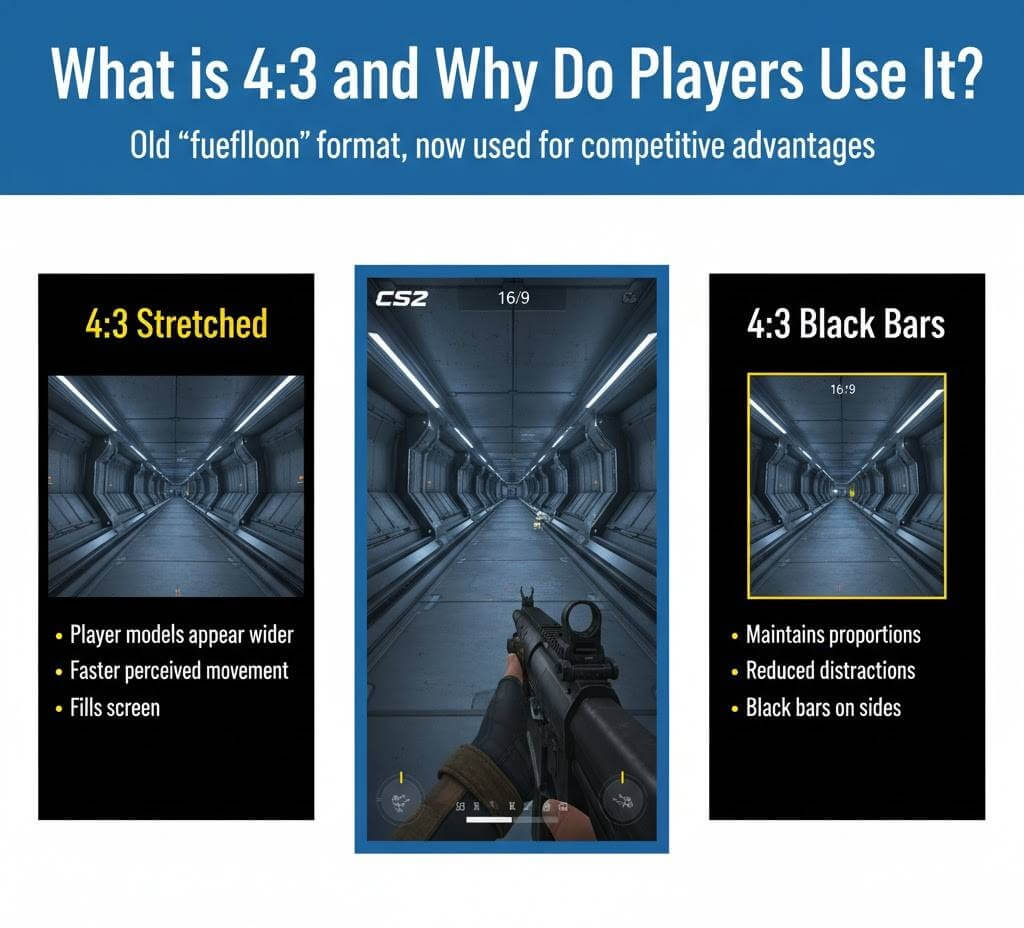
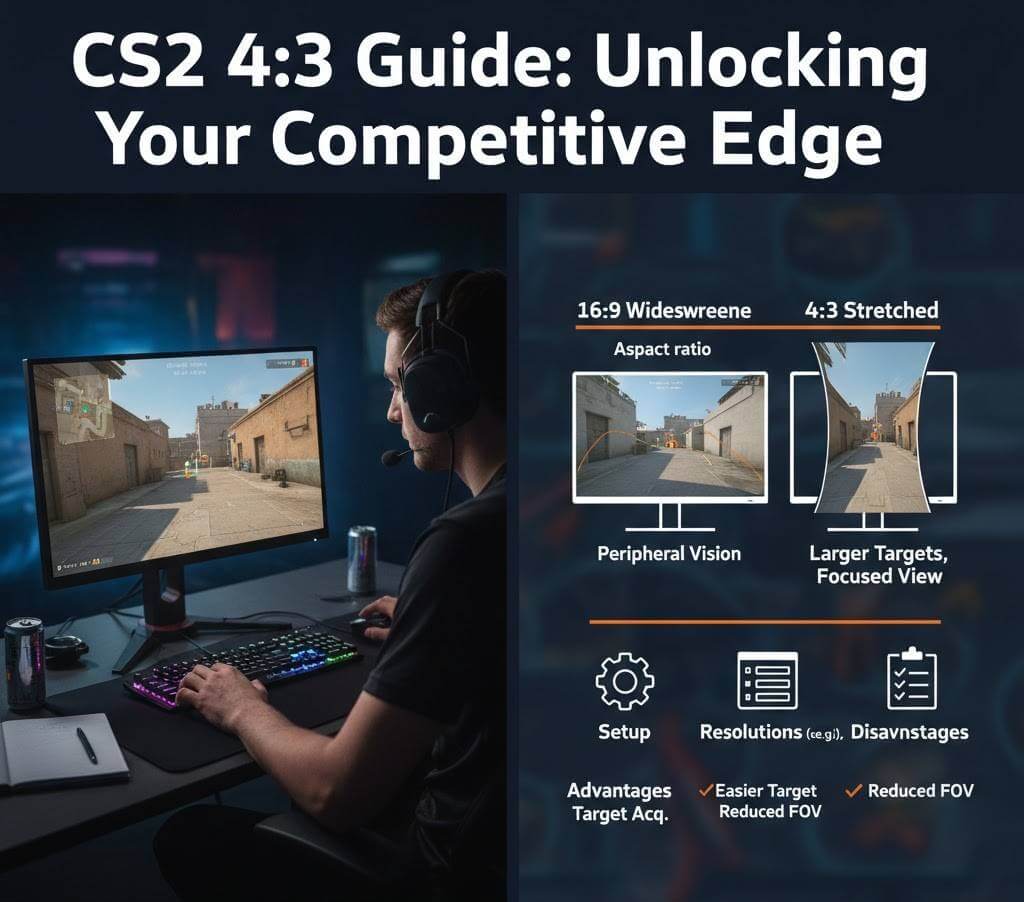
The 4:3 aspect ratio is the old “fullscreen” format that was standard before widescreen monitors took over. In CS2, players use it in two primary ways:
- 4:3 Stretched: The image is stretched horizontally to fill a widescreen monitor. This makes player models appear wider and can feel like they are moving faster across your screen.
- 4:3 Black Bars: The game renders in 4:3 but places black bars on the sides of your screen, maintaining the original proportions without any stretching.
So, what’s the appeal?
- Larger Player Models: The stretching effect can make enemies appear slightly wider and easier to see and track, especially at a distance.
- Higher FPS: Rendering fewer pixels can provide a significant boost to your frames per second (FPS), which is crucial for smooth gameplay.
- Focus: The black bars method can help narrow your field of view, reducing distractions and helping you concentrate on what’s directly in front of you.
- Familiarity: Many veteran players have thousands of hours on this aspect ratio and are simply accustomed to the feel.
How to Set Up 4:3 in CS2
Setting up 4:3 in CS2 is straightforward, but it requires a quick change in two places. Let’s walk through it.
Step 1: Setting Your In-Game Resolution
- Launch CS2 and go to the Settings menu.
- Click on the Video tab.
- Under Resolution, you’ll see a dropdown menu. Here, you need to look for resolutions that have a 4:3 aspect ratio. These are typically lower than your native monitor resolution.
- Common 4:3 resolutions include: 1024×768, 1280×960, and 1440×1080.
- Pro Tip: 1440×1080 is a great balance—it’s a 4:3 aspect ratio but with a higher pixel count, making the image sharper than 1024×768 while still giving you the 4:3 benefits.
- Select your desired 4:3 resolution.
- Choose your Display Mode. For now, select Fullscreen or Fullscreen Windowed.
At this point, you might already be done! If the game automatically stretched to fill your screen, you’re good to go. If you see black bars and want it stretched (or vice versa), you need to change a setting outside the game.
Step 2: Configuring Your GPU Settings
To control the stretching or the black bars, you need to adjust your graphics card control panel.
For NVIDIA Users:
- Right-click on your desktop and open NVIDIA Control Panel.
- Go to Display > Adjust desktop size and position.
- Under Scaling, select Full-screen.
- Under Perform scaling on, choose GPU.
- Make sure the “Override the scaling mode set by games and programs” box is checked.
- Click Apply.
For AMD Users:
- Right-click on your desktop and open AMD Software.
- Go to Gaming > Display.
- Find the GPU Scaling option and turn it ON.
- Set the Scaling Mode to Full Panel.
Once this is done, go back into CS2. Your chosen 4:3 resolution should now be stretched to fill your entire screen.
Choosing Your Perfect 4:3 Resolution
Not all 4:3 resolutions are created equal. Your choice will impact clarity, FPS, and model size. Here’s a quick breakdown:
| Resolution | Why You’d Use It |
| 1024×768 | The classic pro choice. Maximizes FPS and creates the most noticeable stretching effect for larger models. The downside is the image can be blurry. |
| 1280×960 | A popular middle-ground. Offers a clearer image than 1024×768 while still providing a great FPS boost and the classic 4:3 feel. |
| 1440×1080 | The “HD” 4:3 experience. This resolution is much sharper and cleaner, but it will demand more from your GPU. It’s perfect if you have a powerful PC but want the 4:3 advantages. |
Our general recommendation is to start with 1280×960 and test from there. It’s the sweet spot for most players.
The Great Debate: 4:3 vs 16:10 vs 16:9
This is the core of the argument. Let’s compare the most common aspect ratios head-to-head.
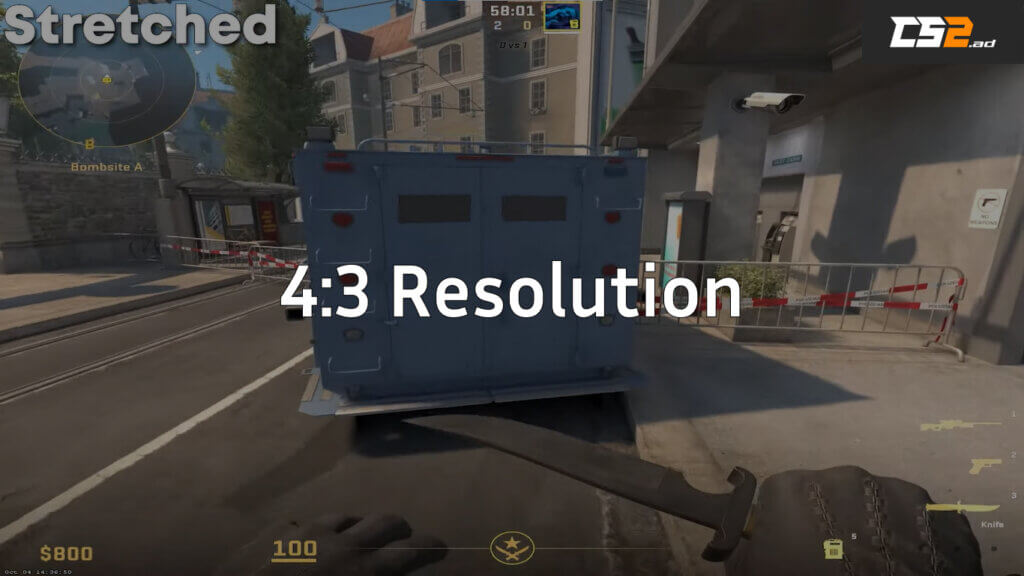
4:3 Stretched Resolution
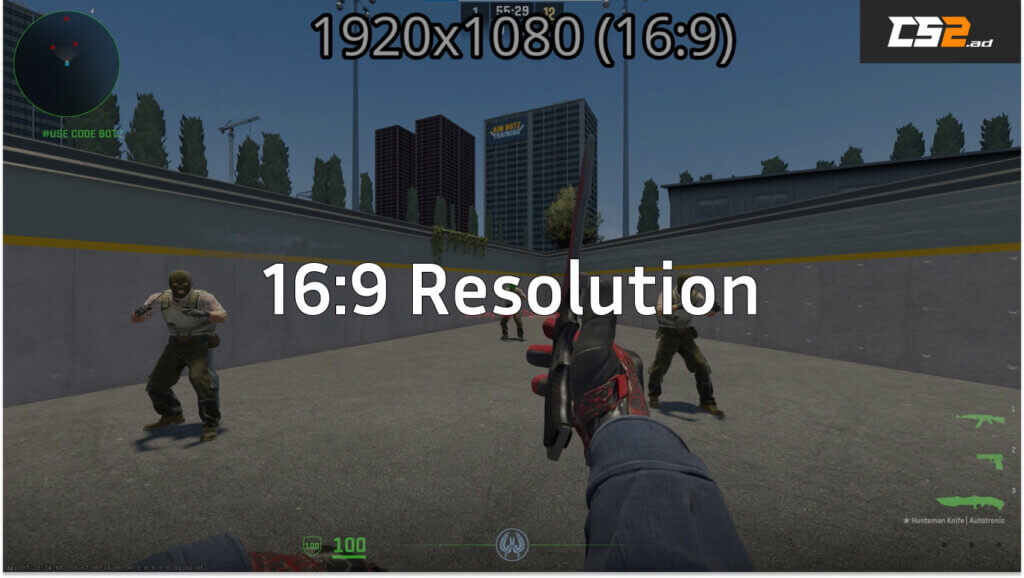
16:9 Resolution
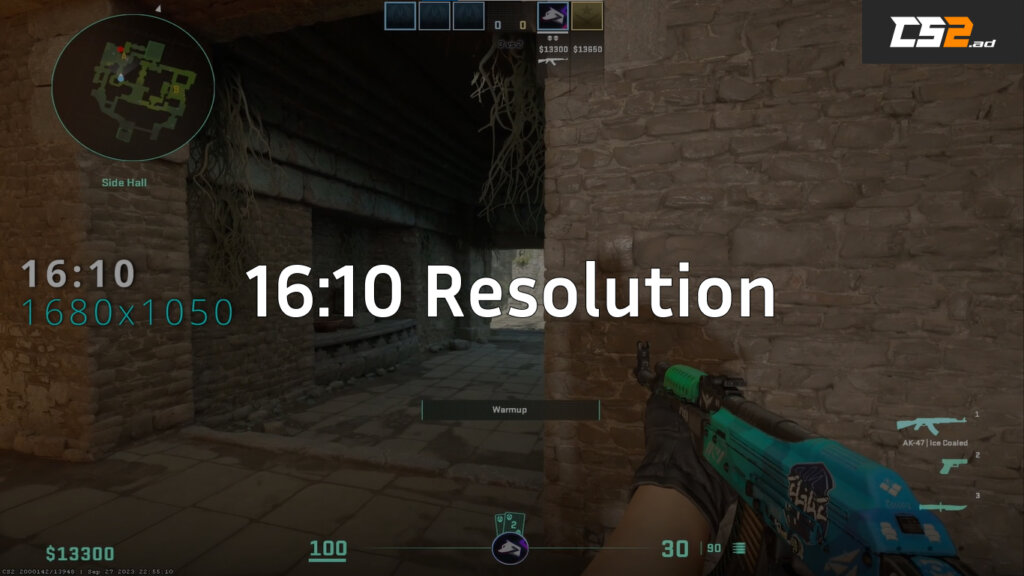
16:10 Resolution
| Aspect Ratio | Pros | Cons |
| 4:3 Stretched | – Wider-looking player models- Higher FPS- Focused field of view | – Lower horizontal Field of View (you see less to your sides)- Stretched image can feel unnatural- Slower horizontal mouse movement feel |
| 16:10 | – A nice compromise between 4:3 and 16:9- Slightly larger models than 16:9- More horizontal FOV than 4:3 | – Less FPS than 4:3- Not as much model stretching as 4:3 |
| 16:9 (Native) | – Maximum horizontal Field of View- Sharp, intended image quality- Consistent mouse feel | – Player models appear thinner- Lower FPS than 4:3 |
The Bottom Line:
- Choose 4:3 Stretched if you value larger-looking targets, need every last FPS, and don’t mind the reduced peripheral vision.
- Choose 16:9 if you want the full, immersive experience with the widest possible field of view and the sharpest graphics.
- Choose 16:10 if you want a bit of both worlds—a little more width than 4:3 without committing to the full widescreen experience.
It’s important to remember that your aspect ratio and resolution are deeply personal preferences. A setting won’t magically make you a global elite, but the right one can help you feel more comfortable and confident. For inspiration, you can check out the configs of pros who use 4:3, like m0NESY’s CS2 settings or s1mple’s CS2 settings.
Fine-Tuning Your 4:3 Experience
Once you’ve settled on your aspect ratio, make sure the rest of your setup is optimized. Your CS2 video settings for brightness and boost player contrast can help make targets pop even more. Furthermore, pairing your new res with a razor-sharp CS2 crosshair that you’re comfortable with is a game-changer.
Frequently Asked Questions (FAQs)
1. Why do CS2 pros use 4:3 stretched resolution?
Most CS2 pros use 4:3 stretched because it makes player models appear wider, making it easier to spot and aim at enemies. It also boosts FPS since fewer pixels are rendered, giving smoother gameplay.
Check how top players like s1mple’s CS2 settings, m0NESY’s CS2 settings, and ZywOo’s CS2 settings use 4:3 resolutions for competitive advantage.
2. What’s the difference between 4:3 stretched and 4:3 black bars in CS2?
- 4:3 Stretched: Fills your entire widescreen, making enemies appear wider and easier to hit.
- 4:3 Black Bars: Keeps the original proportions with black bars on the sides for an authentic CS:GO look.
If you’re optimizing visuals, explore our CS2 video settings guide and CS2 crosshair guide to build your ideal setup.
3. How can I set up 4:3 stretched resolution in CS2?
To enable 4:3 stretched:
- In CS2 settings, select a 4:3 resolution like 1280×960 or 1024×768.
- In your GPU control panel, choose Full-screen scaling (NVIDIA) or Full Panel (AMD).
- Apply and restart the game.
Once you’re set, match it with your CS2 viewmodel settings and crosshair customization guide to get your visuals perfectly aligned.
4. Which 4:3 resolution is best for CS2?
The ideal 4:3 resolution depends on your PC and preference:
- 1024×768: Maximum FPS, but slightly blurry visuals.
- 1280×960: Balanced clarity and performance.
- 1440×1080: Clean, HD-quality option for powerful GPUs.
Most players prefer 1280×960 for its balance between smoothness and visibility. For extra performance tweaks, visit our CS2 FPS boost guide and CS2 launch options guide.
5. Is 4:3 better than 16:9 in CS2?
It depends on your playstyle:
- 4:3 gives you bigger targets and better performance — perfect for aim-heavy players.
- 16:9 offers a wider view and cleaner visuals — ideal for awareness-based play.
You can test both on your favorite maps like Mirage, Inferno, or Dust 2 to see which feels better for you. For more map insights, explore all CS2 map callouts.
Final Verdict: Is 4:3 For You?
The 4:3 aspect ratio in CS2 is a powerful tool for players who prioritize raw targeting and performance over visual fidelity. It’s not objectively “better,” but it is subjectively better for many.
Our advice? Give it a real shot. Spend a few days in CS2 Deathmatch or on your favorite CS2 maps like Mirage or Inferno to get a feel for the stretched models and the altered mouse sensitivity. If it feels good and your aim improves, you’ve found a new edge. If it feels cramped and strange, your native 16:9 is probably the way to go.At the end of the day, the best settings are the ones that help you play your best. Now get out there, tweak your settings, and land those headshots