



If your shots or peeks in CS2 feel a split second late, you’re likely dealing with input lag — the invisible delay between your action and what you see on screen.
In this guide, we’ll show you how to fix input lag in CS2, uncover settings that pros use to lower input lag, and optimize your setup for smooth, instant responsiveness.
What Is Input Lag in CS2 and Why It Matters
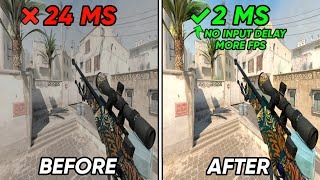
Input lag is the delay between pressing a key or moving your mouse and seeing the corresponding action in-game. In fast shooters like CS2, even a 10-20 ms lag can cost you a round.
Common causes include:
- Outdated drivers or firmware
- Poor graphics or display settings
- Background apps using CPU/GPU
- Bad network connection or Wi-Fi
- Enabled V-Sync or high post-processing effects
Understanding these causes helps you pinpoint what’s slowing you down.
Tip: If you’re learning how mechanics affect round impact, also read What Is ADR in CS2? to track your damage consistency.
Quick Pre-Game Checklist to Reduce Lag
Before diving into deeper fixes, make sure you check these basics:
- Monitor refresh rate set to 144Hz+
- GPU and chipset drivers updated
- Mouse polling rate at 1000 Hz
- Raw Input enabled in CS2
- V-Sync disabled
- Fullscreen mode active (not borderless)
- Wired internet connection instead of Wi-Fi
If any of these are off, that’s your first bottleneck.
Hardware & Display Tweaks to Lower Input Lag
Monitor and Refresh Rate
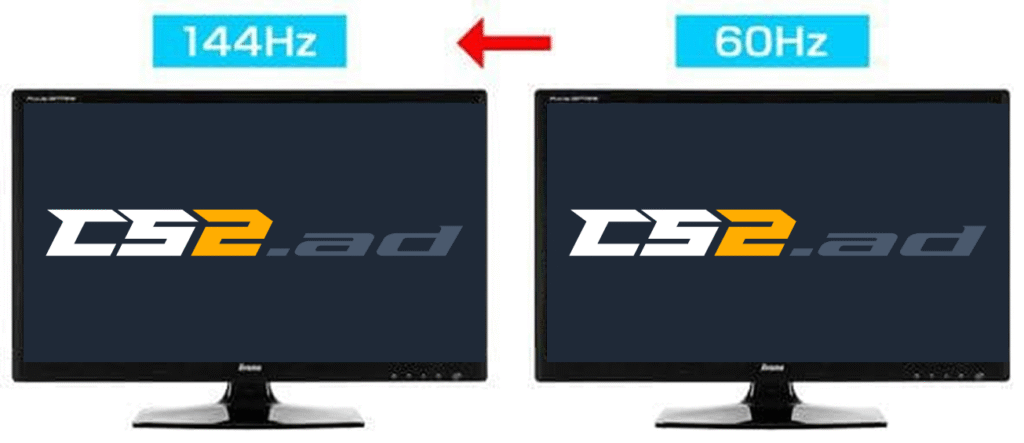
- Use a 144 Hz, 240 Hz, or 360 Hz gaming monitor.
- In Windows, go to Display Settings → Advanced → Refresh rate and ensure it’s set to the highest option.
- Fullscreen mode reduces input delay since it lets CS2 directly access the GPU.
- Disable motion blur or extra monitor “smoothing” features that add delay.
Mouse & Keyboard Setup
- In CS2 → Settings → Keyboard & Mouse → Enable Raw Input.
- Disable “Enhance pointer precision” in Windows mouse settings.
- Set mouse polling rate to 1000 Hz and use 400-800 DPI (see Best DPI for CS2).
- Use wired peripherals for consistent input timing.
- Avoid USB hubs that can add latency.
GPU & Driver Settings
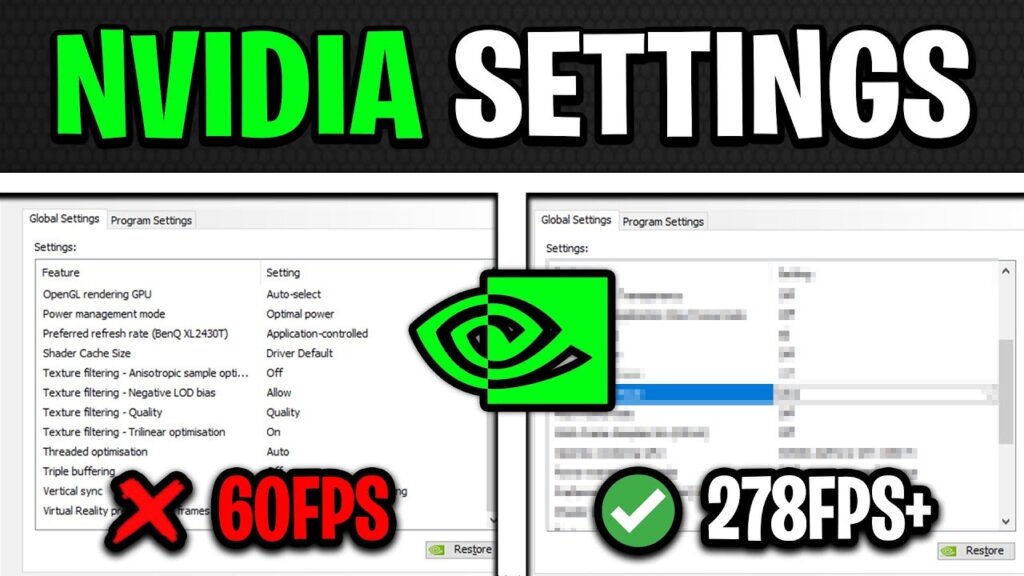
- Keep your NVIDIA or AMD drivers up to date.
- Disable V-Sync in both the CS2 settings and your GPU control panel.
- For NVIDIA users: Enable “Low Latency Mode” in the Control Panel.
- For AMD: Turn on “Anti-Lag”.
- In CS2, reduce post-processing and anti-aliasing for faster frame rendering.
- Target FPS above your monitor’s refresh rate — higher FPS = lower latency.
If you want to go deeper into graphics setup and configs, check out our guide on CS2 Launch Options to improve startup and performance consistency.
Best In-Game Settings to Fix Input Lag in CS2
Video Settings
| Setting | Recommended Value |
| Display Mode | Fullscreen |
| V-Sync | Off |
| Multisampling | 2x or None |
| Motion Blur | Off |
| Boost Player Contrast | On |
| NVIDIA Reflex | On (if available) |
| FPS Limit | Slightly below monitor refresh (e.g., 230 for 240Hz) |
Mouse Settings
- Raw Input: On
- Mouse Acceleration: Off
- Polling Rate: 1000 Hz
- DPI: 400–800 for precision (see ZywOo CS2 Settings for reference).
Recommended CS2 Launch Options
Go to Steam Library → CS2 → Properties → Launch Options and paste:
-novid -high -nojoy -tickrate 128
Explanation:
- -novid – Skips intro video.
- -high – Prioritizes CS2 CPU resources.
- -nojoy – Removes joystick support (slightly faster).
- -tickrate 128 – Ensures smoother offline or workshop play.
Want to explore commands further? Try CS2 Practice Commands to test your settings effectively.
Network Tweaks to Reduce Perceived Input Lag
- Always use a wired Ethernet connection.
- Enable net_graph 1 in console to check ping, choke, and loss.
- If you’re seeing packet loss or rubberbanding, follow How to Fix Packet Loss in CS2.
- Avoid downloads, streams, or VPNs during matches.
- Prefer servers in your region for consistent tick stability.
If you’re experiencing lag spikes instead of true input delay, read CS2 Rubberbanding or CS2 Freezing Fix for network and performance stability.
Windows & System Optimization Tips
- Power Plan – Set to “High Performance”.
- Background Apps – Close browsers, Discord overlay, or capture tools.
- Game Mode – Keep enabled, but disable Xbox DVR and Game Bar.
- Disable Fullscreen Optimizations
- Right-click CS2 → Properties → Compatibility → Check “Disable fullscreen optimizations”.
- Right-click CS2 → Properties → Compatibility → Check “Disable fullscreen optimizations”.
- USB Power Settings – In Device Manager → USB Root Hub → uncheck “Allow computer to turn off this device”.
- Thermal Management – Keep CPU and GPU temps below 80°C for stable performance.
- Update BIOS and Chipset Drivers occasionally — they can directly influence latency.
Table: What Causes Input Lag vs Fixes
| Cause | Description | Fix |
| V-Sync | Waits for screen refresh, adds delay | Disable in-game and GPU driver |
| Low FPS | GPU rendering slower than refresh | Lower settings / optimize config |
| Mouse Filtering | OS filters input | Enable Raw Input |
| Power Saving | CPU/USB throttling | Use High Performance plan |
| Network Jitter | Unstable ping causes delay | Use wired LAN connection |
| Background Apps | Take CPU resources | Close overlays, browsers |
| Wrong Config | Bad interp/tick settings | Adjust console & launch options |
Advanced Fixes (For Competitive Players)
- Disable Fullscreen Optimization manually.
- Use LatencyMon to detect driver latency spikes.
- Keep CS2’s FPS above 240 for instant responsiveness.
- Set GPU driver to “Prefer maximum performance”.
- For testing consistency, practice on Deathmatch or Aim Maps (see CS2 Deathmatch Guide).
Step-by-Step CS2 Input Lag Fix Routine
- Update drivers and firmware.
- Set Windows power mode to High Performance.
- Enable Raw Input and disable Mouse Acceleration.
- Turn off V-Sync in both CS2 and GPU settings.
- Add recommended launch options.
- Close background apps.
- Use wired internet.
- Test responsiveness in-game with net_graph 1.
Once everything feels snappy, try aiming on CS2 Aim Training Maps to test your reaction precision.
Final Thoughts
Reducing input lag in CS2 is about balancing hardware, software, and in-game settings for the fastest reaction possible. Once your input delay is minimal, every peek, flick, and pre-fire will feel smoother and more consistent.
If you want to fully optimize your setup, also check out:
Stay sharp, react fast, and enjoy lag-free gameplay — that’s how pros win those microsecond fights.
Frequently Asked Question (FAQs)
1. Why does my CS2 feel delayed?
Because of V-Sync, low FPS, high ping, or input device filtering. Fix these for smoother response.
2. Does V-Sync cause input lag in CS2?
Yes — it waits for the display’s refresh cycle, adding delay. Disable it for lowest latency.
3. What’s the best refresh rate for low lag?
144 Hz minimum; 240 Hz or 360 Hz gives even better results.
4. Should I enable Raw Input in CS2?
Absolutely. It sends data directly from your mouse to the game without Windows interference.
5. How do I test if my lag is network-based?
Use net_graph 1. If your ping or loss spikes, read Connecting to Counter-Strike Network for help.