


Every CS2 player knows the moment—you’re deep in a clutch, and your teammate won’t stop talking about their dinner plans, blasting music, or raging at the team. Whether you’re grinding Premier or chilling in casual, knowing how to mute players quickly and effectively can seriously improve your game. This guide breaks down all the best ways to mute voice and text chat in CS2, along with in-game settings, console commands, and troubleshooting if things don’t work.
Let’s make your CS2 experience cleaner, quieter, and more focused.
Why Muting Matters in CS2
CS2 is one of the most competitive shooters out there, and communication is a key part of strategy. But when communication turns toxic or gets flooded with noise, it can mess with your game—and your mental state.
Here’s why muting is legit valuable:
- Avoid toxic teammates who flame or blame.
- Focus during intense clutches or key rounds.
- Cut out background noise, loud music, and open mics.
- Create a “comms-only” environment to hear important callouts.
Some players who prefer focused team comms even use muting as part of their performance routine, especially when playing critical matches or climbing the CS2 ranks.
How to Mute Voice Chat in CS2 (Fast Methods)
There are several ways to mute voice chat in Counter-Strike 2 depending on how fast you need the silence and whether it’s just one noisy player or the whole team.
Mute a Player via the Scoreboard (Tab Method)
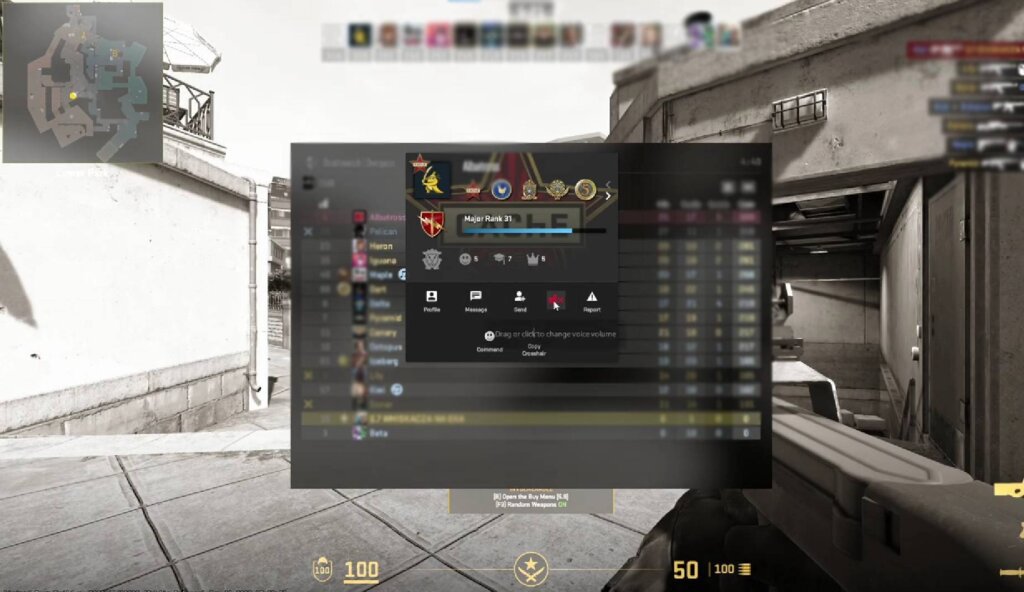
This is the go-to method during a round.
- Press Tab to open the scoreboard.
- Right-click to unlock your cursor.
- Hover over the player you want to mute and click the speaker icon.
- That player’s mic is now muted for you—no more noise from them.
This is fast and doesn’t require you to leave the game or open any menus.
Mute from the In-Game Player/Voice Menu
You can also control voice settings from the in-game settings menu.
- Go to Settings > Audio > Voice.
- Scroll to Mute Players.
- Select which players to mute individually.
This allows more control but takes longer than the scoreboard method.
Mute Everyone (Team/All) When You Need Instant Silence
Sometimes you just need complete silence—no comms, no distractions.
Here’s how to quickly mute all:
- Open the console (enable it in settings if you haven’t).
- Type: voice_enable 0 to disable all incoming voice chat.
- Want it back? Type: voice_enable 1.
Pro tip: bind this to a key for instant toggling. Learn how in our CS2 Binds Guide.
How to Mute Text Chat in CS2
Text chat can be just as distracting, especially when it’s filled with spam, insults, or unnecessary info. Here’s how to control it.
Disable All Chat vs Team Chat (What Each Option Does)
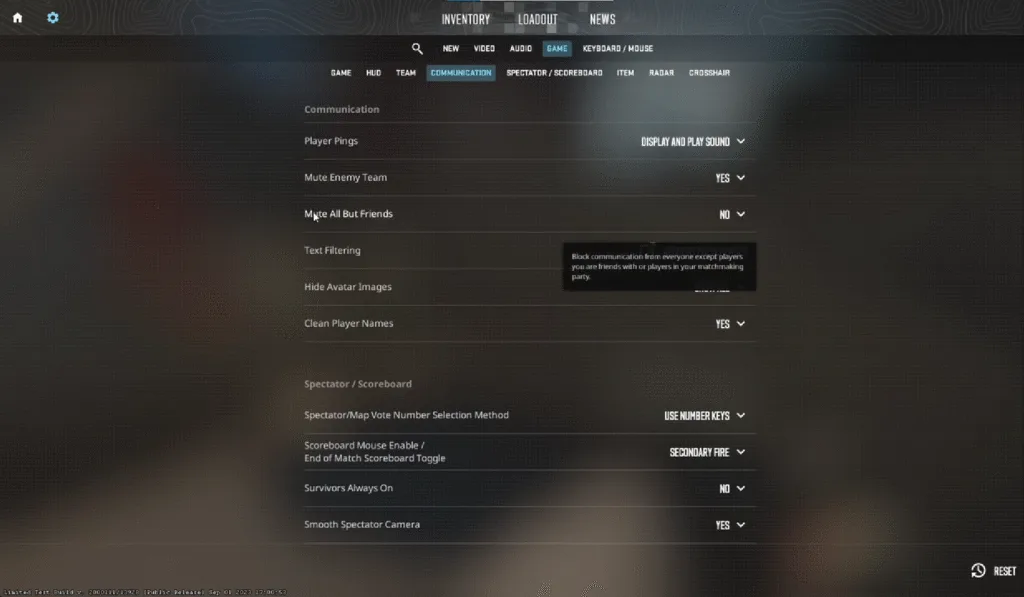
In Settings > Game > Communication, you’ll find options to control text chat:
- Disable All Chat: Blocks messages from the enemy team.
- Disable Team Chat: Blocks messages even from your teammates.
- Block Match Chat: Mute all chat in lobbies and matches.
This is helpful if you’re trying to stay zen during high-pressure moments.
Mute a Specific Player’s Text Messages
Using the Scoreboard:
- Press Tab, then right-click.
- Click on the chat bubble icon to mute that player’s text messages.
Perfect if one player is being annoying without muting your whole team.
Block Spam, Chat Flooding, and Chat Wheel Abuse
Some players abuse the chat wheel or spam binds to flood chat. You can cut this by enabling Chat Filters or turning off chat completely.
Also, check out our guide on Chat Binds in CS2 if you’re wondering how spammy messages are created.
CS2 Settings to Control Voice
Adjust Voice Volume and Individual Player Volume
To tweak voice settings:
- Go to Settings > Audio Tab.
- Under “Voice Chat”, adjust Voice Receive Volume.
- You can also control individual player volume from the scoreboard by right-clicking their name and using the volume slider.
This is useful when someone’s mic is too loud—not toxic, just blowing out your ears.
Turn Voice Chat Off Completely (Temporary vs Permanent)
You can do this in two ways:
- Use voice_enable 0 for a temporary mute.
- Or in Settings > Audio > Voice Chat, uncheck Enable Voice for a permanent off toggle.
Perfect for when you’re playing with friends on Discord or just want to chill alone.
Push-to-Talk Setup for Cleaner Team Comms
Push-to-Talk is a hero feature.
Here’s how to set it:
- Go to Settings > Keyboard/Mouse.
- Find “Use Voice Communication” and bind it to a comfortable key (we recommend V or Mouse4).
- Make sure “Enable Push-to-Talk” is toggled on in the Audio settings.
It ensures only intentional sound gets transmitted, making your comms cleaner.
You can find more voice and volume tips in our Ultimate CS2 Audio Settings Guide.
Quick Console Commands to Mute in CS2
If you love quick inputs (or you’re a fan of config files), console commands are your friend. Open the developer console (~ key) and use these:
Voice Commands (Enable/Disable, Volume)
- voice_enable 0 – disable all voice chat
- voice_enable 1 – re-enable voice chat
- voice_scale 0.5 – sets voice volume to 50% (adjust as needed)
Text/Chat Commands (Hide Chat, Filter)
- cl_mute_all_but_friends_and_party 1 – only hear friends & party
- cl_chatfilters – tweak what kind of messages are shown
- hud_saytext_time 0 – hides chat instantly
Reset/Undo Commands
- voice_reset_mutelist – unmute everyone if you messed up
- cl_mute_all_but_friends_and_party 0 – restores all chat
Full command nerd? Grab our CS2 Voice Enable Command Guide for even more options.
Troubleshooting: Muting Not Working in CS2
Player Still Audible After Muting
This might happen if:
- They’re using Party Voice Chat, which isn’t muted through scoreboard.
- A bug is causing the mute to not register.
- You’re in a custom server with different voice configs.
To fix:
- Use voice_mute and voice_unmute via console.
- Leave and rejoin the match.
- Check if they’re in your party and mute through Steam overlay.
Text Still Showing After Disabling Chat
If you disabled team/all chat and still see messages:
- Double-check Settings > Communication.
- Some modes override chat settings; e.g., Custom Maps or Community Servers.
Verify Keybinds, Config, and Audio Settings
Sometimes binds, launch options, or autoexec files override your settings. It helps to:
- Review your keybinds (especially Push-to-Talk).
- Reset settings to default from the game menu.
- Check your CS2 autoexec config to ensure there’s no conflicting commands.
Best Practices for Competitive Play
Voice and text chat are tools. Using them properly—not disabling everything all the time—is part of being a good teammate.
Muting for Clutch Situations and Anti-Tilt
It’s perfectly fine to mute during:
- 1vX clutch rounds
- Overtime pressure moments
- Post-tilt recovery after a bad round
Use muting proactively, not just reactively.
Reporting Toxic Players and Avoiding Communication Bans
If someone goes beyond annoying:
- Use the in-game report button (scoreboard > right-click > report).
- Stay chill. Mute and move on.
- Avoid flaming back—Valve sees that too.
CS2 has auto comm bans for repeated offenses, so don’t risk it.
Need help identifying roles in your team? Check our guide to CS2 Roles.
Creating a “Comms-Only” Environment Without Throwing the Game
Use these to keep things tactical:
- Mute chat, but don’t mute team voice.
- Enable Push-to-Talk to only hear crisp, clear calls.
- Encourage teammates to share intel, not emotions.
If you’re playing a map like Mirage, check out our Mirage Callouts Guide to visualize comms better.
Muting in CS2 isn’t just about avoiding toxicity—it’s about creating the best possible environment to perform, enjoy, and win. Whether you’re grinding Premier or messing around in CS2 Surf Servers, having control over voice and text makes a noticeable difference.
Master your settings, binds, and mute options, and you’ll be locked in — free from distractions, tilted teammates, and endless mic spam. Happy fragging!