




CS2 Knife Commands | How to Test Any Knife in CS2
Knives in CS2 serve several practical functions in-game. Beyond the obvious ability to eliminate opponents silently and efficiently, they are also used for their speed advantage in certain situations, allowing players to navigate the map quickly.
Moreover, the act of securing a kill with a knife, often seen as a display of skill and bravado, can demoralize opponents and boost team morale. Despite these uses, the allure of CS2 knives lies predominantly in their cosmetic value, with rare skins and animations being highly sought after in the game’s community.
Transitioning from the cultural and functional significance of knives in CS2, many players seek to customize their in-game experience by changing their default knife to one that better suits their style or showcases a rare skin.
This customization is made possible through the use of the developer console and inputting specific console commands. Players can experiment with different knives directly in the game, allowing them to visualize and test various knives in real-time scenarios without the need to purchase or unlock them first.
How to Test Knives in CS2
Testing different knives allows you to find the best fit for your style and preferences, making your CS2 experience more enjoyable and personalized. The right knife can enhance your overall gaming experience through its aesthetics, animations, and the personal satisfaction it brings.
Exploring different knives in Counter-Strike 2 without buying them involves a few straightforward steps. Here’s how to get started:
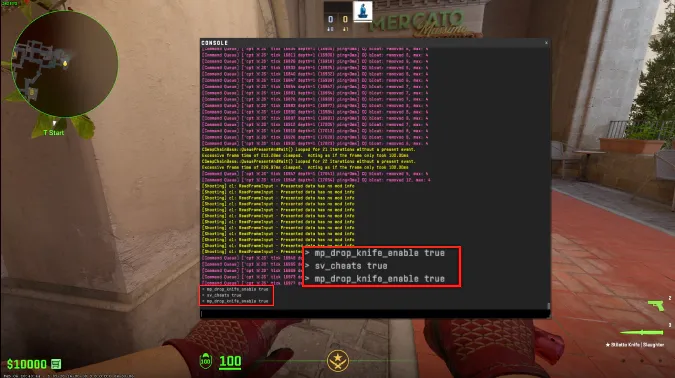
- Once you’re in the game, enable the Developer Console by pressing the tilde key (~);
- Input the commands “sv_cheats 1” and “mp_drop_knife_enable 1” into the console, pressing enter after each command. These commands enable cheat functions and allow you to drop knives.
- After activating the necessary commands, press the G key to drop your current knife;
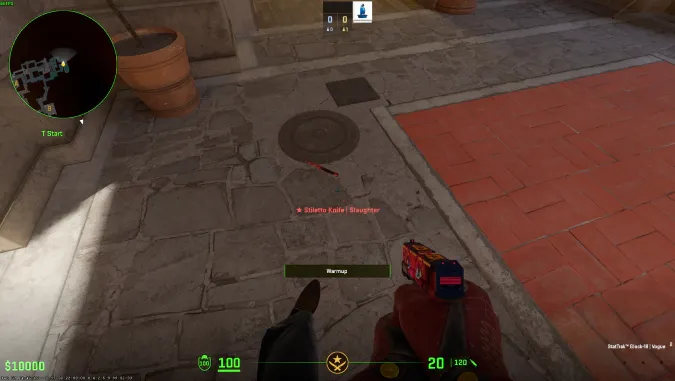
- Aim your crosshair down at the ground and access the developer console once more;
- Enter one of the knife commands provided below, and your selected knife will appear.

Bowie Knife
subclass_create 514
Butterfly Knife
subclass_create 515
Classic Knife
subclass_create 503
Falchion Knife
subclass_create 512
Flip Knife
subclass_create 505
Gut Knife
subclass_create 506
Huntsman Knife
subclass_create 509
Karambit
subclass_create 507
Kukri Knife
subclass_create 526
M9 Bayonet
subclass_create 508
Navaja Knife
subclass_create 520
Nomad Knife
subclass_create 521
Paracord Knife
subclass_create 517
Shadow Daggers
subclass_create 516
Skeleton Knife
subclass_create 525
Stiletto Knife
subclass_create 522
Survival Knife
subclass_create 518
Talon Knife
subclass_create 523
Ursus Knife
subclass_create 519
By enabling users to experiment with different knives, CS2 fosters a more personalized gaming environment where players can align their in-game appearance with their personal preferences.
Whether it’s for the thrill of trying out rare skins or simply finding the perfect match for one’s playstyle, the ability to test any knife in CS2 is a testament to the game’s versatile and player-centric design.
Check out our best knife skins posts:
- The Most Popular Paracord Knife Skins
- The Best CS2 Skins for Skeleton Knives
- Top CS2 Skins for Knives
- The Most Desirable Skins for Ursus Knives
- The Best Survival Knife Skins in CS2
- Top CS2 Skins for Nomad Knives
Trade on the go - install the mobile app of DMarket from Google Play or App Store. Never miss great prices and unique skins. The best CS2, Dota 2, Rust and TF2 marketplace is always at hand!
Follow us on and to get more posts with CS2 commands!
Altri in Guide skin
- Swisher: Valve generally doesn't change its decisions easily, but everyone still hopes the Major sticker system can be adjusted
- October 3 CS Update: Photo Session and Buy Menu Showing Gloves
- Custom Sticker Combo Recommendations: C4 Can Now Be Legitimately Showed Off to Teammates
- Creative Workshop Excellent Skin Recommendation: When Will the Black Phantom AK Enter the Game? Translation