




How to 1v1 in CS2: All Information about 1v1 in CS2
Counter-Strike 2 is a team game alright, but personal skills here are as important as team coordination. A pretty effective way to improve your aim and movement control is to have a solo game against one opponent. This experience will teach you to take action and rely only on your abilities and decisions. In this guide on DMarket Blog, we describe everything you need to know about how to 1v1 in CS2.
Sure, there are other reasons to enjoy CS2 1v1, beyond practical training. It is certainly fun to have such game sessions with a friend—without involving random people from online matchmaking. Someone may even decide to settle their arguments via a 1v1 Counter-Strike 2 match. Whatever your goals are, this article will be helpful.
What Is 1v1 in CS2
In Counter-Strike 2, 1v1 refers to a high-intensity tactical scenario where only one player remains alive on each team. While it is the simplest form of combat in terms of player count, it is the most complex in terms of psychological warfare, map control, and utility management.
How to 1v1 in CS2
To start playing a 1v1 match in Counter-Strike 2, just follow the steps below. Every point in this guide has a detailed explanation further in the article.
-
Enable the developer console. Go to Settings -> Game and use the self-explanatory option there.
-
Start your private matchmaking. There is a menu tab specifically for this. Invite a friend by sharing your unique code, so you can both be in your private lobby. An alternative step is to create your private 1v1 server. If you use it, you will need to check your server IP with the console command status, and your friend should use the command connect [IP address] to join your server.
-
Remove bots from the game. Use the console command bot_kick.
-
Use a selection of console commands to customize your 1v1 playing experience.
-
Enjoy 1v1 in CS2!
It’s as easy as pie. Still, we can highlight various possibilities in our guide on how to 1v1 in CS2. They are connected to setting up your private server, selecting a map, and adjusting the playing environment. The details on these options are in the following sections.
The Developer Console for 1v1 CS2 Matches
Thanks to many improvements in Counter-Strike 2, the most useful options are available directly through the game settings menu. So, why do we need the developer console for 1v1 matchmaking?
The console is a convenient interface for adding various elements of the game code. Not everything can be used in it, though. CS2 recognizes a pretty vast selection of console commands—mainly to adjust various game settings.
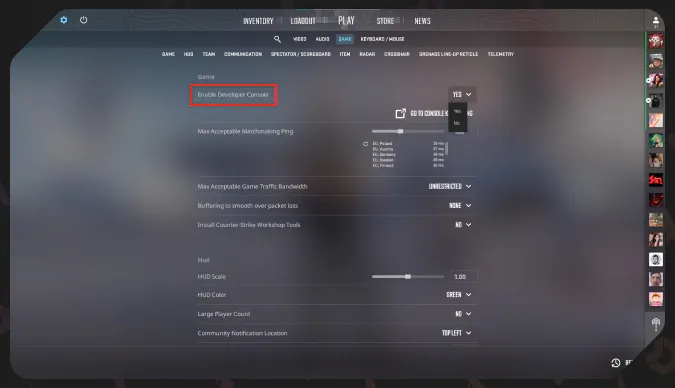
For 1v1 matches in CS2, we need the developer console to:
- remove bots
- activate specific settings.
Also, you may want to use the console to join a friend’s server or start your own.
How to Start Private 1v1 Matchmaking in CS2
Counter-Strike 2 has a super clear option in the game menu to start your private matchmaking.
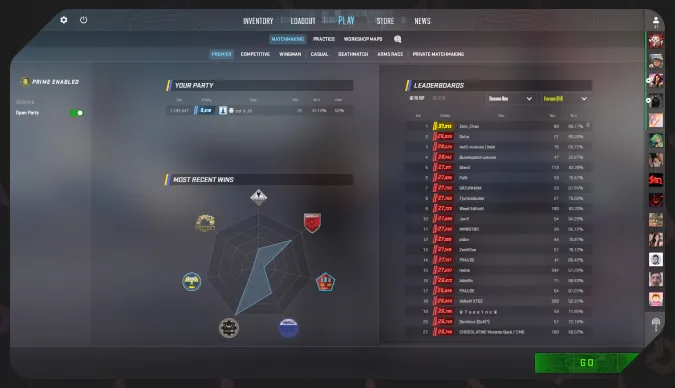
- Press ‘Play’ in the upper menu.
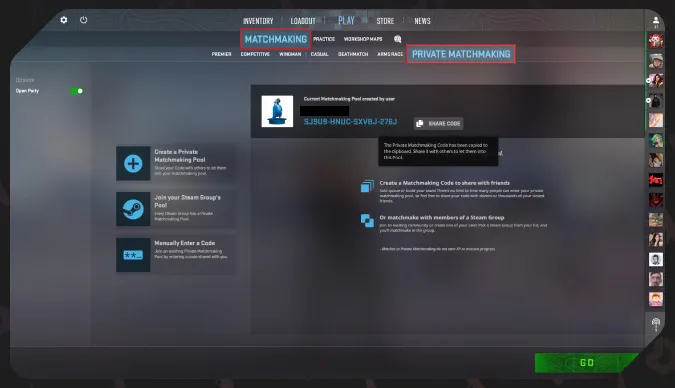
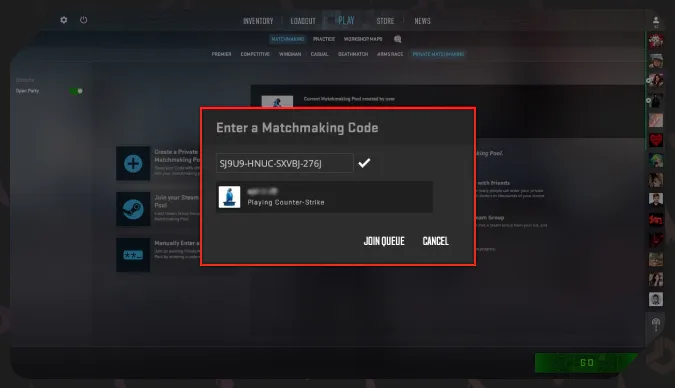
- Go to the tab ‘Matchmaking’ -> ‘Private Matchmaking’.
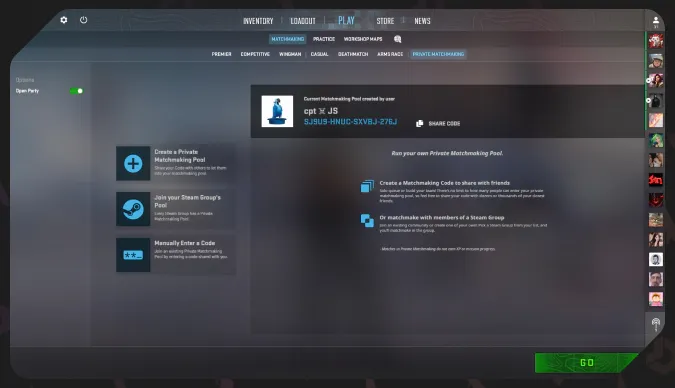
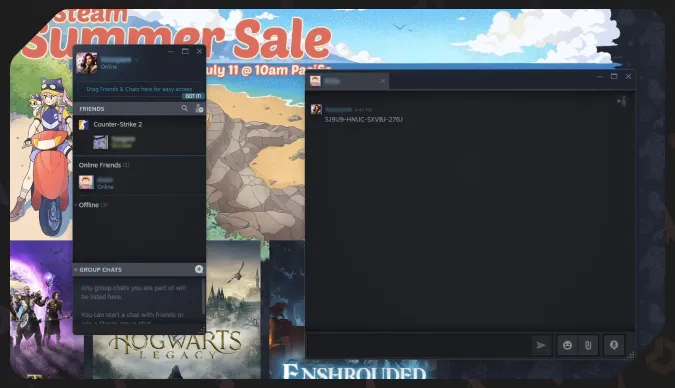
- Copy your matchmaking code from there by pressing the ‘Share Code’ button.
- Send the code to a person you want to play 1v1 CS2 with.
- The person should follow the same path, and in the Private Matchmaking tab, press the button ‘Manually Enter a Code’—it’s in the left menu. Your code should be added to the text field in the pop-up window.
- When you have both entered the private matchmaking lobby, press the ‘Go’ button to start playing.
- Then, you will need to delete bots to make it really 1v1.
How to Set a Private 1v1 Server in CS2
When the developer console is enabled you can use special console commands to check out your IP address, select a map to play on, and let your partner join. It’s an alternative to private matchmaking through the game menu.
- Make sure the developer console is enabled.
- Press the tilde button, ~. You can do it on the main CS2 screen.
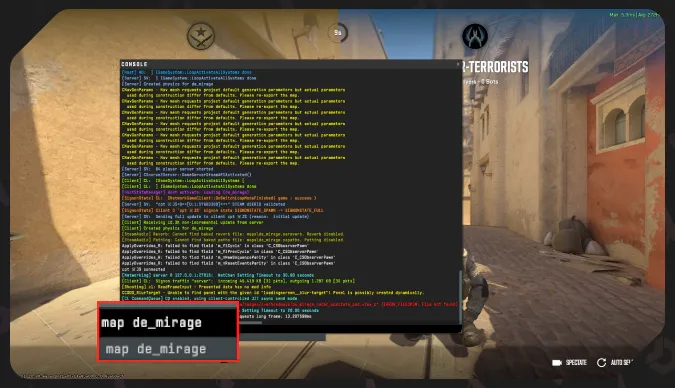
- Enter the command map [Map Code] to jump into a specific map. Change the [Map Code] with an actual code of a map you want to play on: for example, map de_mirage.
- Enter the command status.
- Look for the Server IP address in the code there. Copy it and send it to your friend.
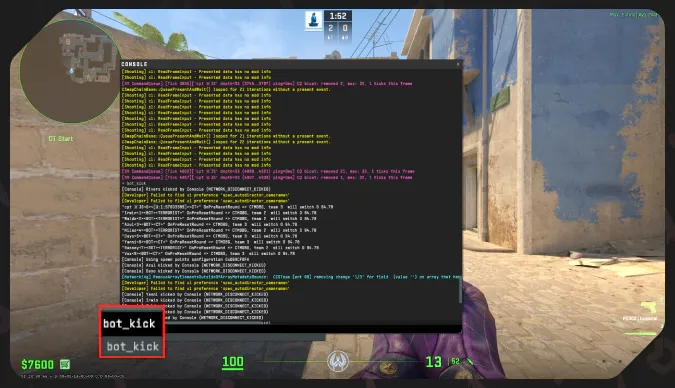
- Use the console command bot_kick to remove all bots.
- Let your partner enter the command connect [IP address] to the developer console. They will join your server. You should choose different teams.
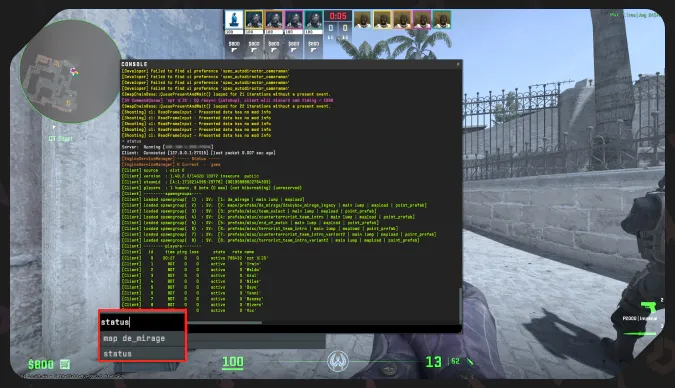
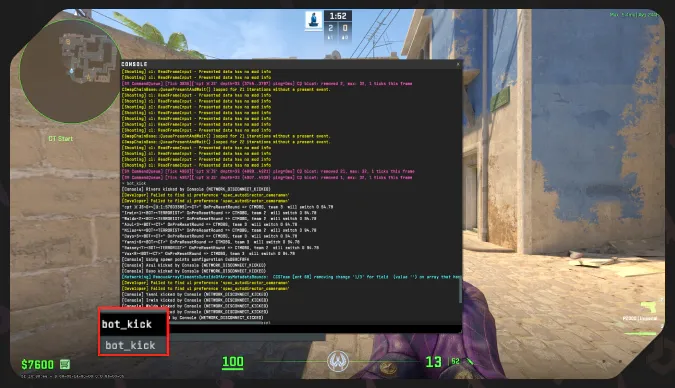
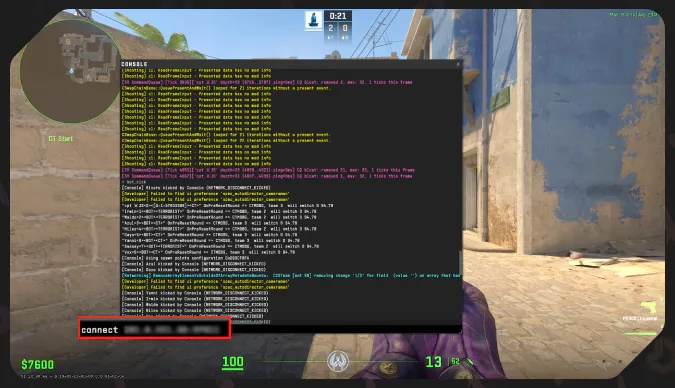
Counter-Strike 2 creates private matchmaking / servers for the full-team matches. This means the game will fill up the player slots with bots. It’s not what you need for the 1v1 experience in CS2. So, you need to kick bots.
We have a special DMarket Blog guide on how to remove bots in CS2. For our purposes here, we can mention only one console command.
- bot_kick—all the bots in your current match will be removed. Only real players will remain, so you will get your CS2 1v1.
How to Choose a Map for 1v1 in CS2
When you initiate the creation of private matchmaking, the game will allow you to choose one of the maps via the standard CS2 interface. But if you create your private server via the console command, you may need to enter a specific map code—add it to the command map [Map Code]. Our guide on how to 1v1 in CS2 mentioned this step earlier. Now, we can list the console commands for the official Counter-Strike 2 maps.
- map de_mirage
- map de_dust2
- map cs_vertigo
- map de_ancient
- map de_anubis
- map de_inferno
- map de_nuke
- map de_overpass
- map cs_office
- map cs_italy
- map cs_thera
- map cs_mills
There is a simple way to not bother with map codes at all. Instead of starting your server from the CS2 starting screen, you can go to the offline practice with bots (in the standard Play menu), choose a map there, start the match, remove bots, and then invite your friend. Check the server IP with the command status and let the other person join with connect [IP address].
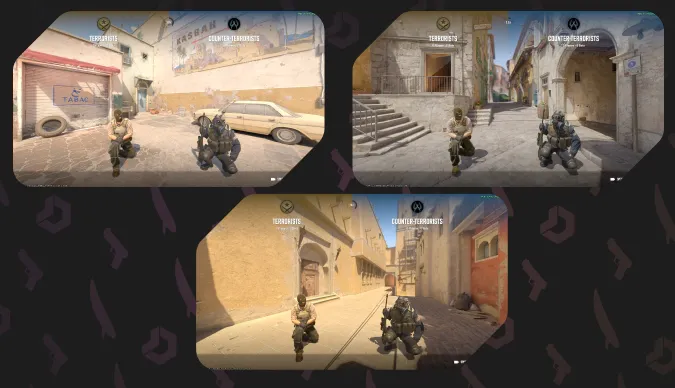
One thing is pretty obvious here—the maps were created with team shooting matches in mind. They are big, to give players more opportunities for rotations and unexpected actions.
1v1 in CS2 is different. Somewhat smaller locations could be better for such matches, as you don’t want to lose each other around those streets and buildings. We have a selection of the best 1v1 maps, so check it out. Here, we can figure out how to play 1v1 CS2 on Workshop maps.
How to 1v1 in CS2 on a Workshop Map
The Counter-Strike Workshop has tons of amazing community-created maps. All the basics you need to know are covered in our special guide: how to play workshop maps in CS2. Let’s just summarize the info!
- Go to the CS2 Workshop.
- Select a map to play on.
- On the map’s page press the ‘Subscribe’ button.
To find a good 1v1 map, you can simply add “1v1” to the search bar. Choose something with five or four stars and many votes.
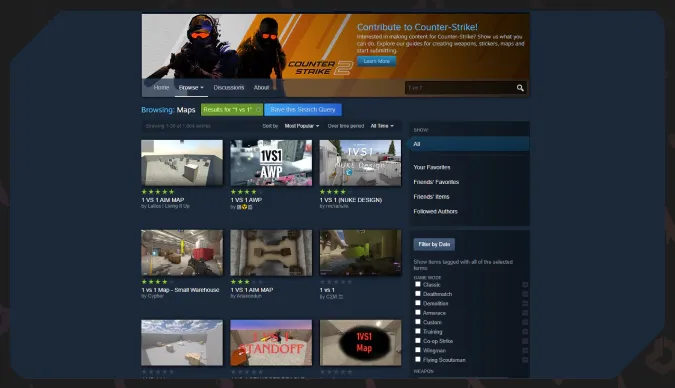
So, how to actually start playing CS2 1v1 on your chosen Workshop map?
- Launch the game, press ‘Play’ and head to the tab ‘Workshop Maps’. Choose any and press ‘Go’.
- Enter bot_kick to remove bots.
- Check out your current server IP with the console command status.
- Share the server IP with your friend. They should use the command connect [IP address] to join your server.
The Best Settings for 1v1 in CS2
When you and your friend are already in the game, it is time to take the final step. You may want to change some of the game settings to make CS2 1v1 matches as interesting as possible.
Sure, it is also totally great to keep the default Counter-Strike settings. But again, they were created with team matches in mind. Adjust some console commands for more fun and even more intense 1v1 competition.
- sv_cheats 1—this basic command enables various cheats. It’s not about cheating! You change the fundamental rules of Counter-Strike, and the command is active only on your personal server.
- sv_infinite_ammo 2—with this command, both players in 1v1 CS2 will have unlimited reloads. In 1v1 matches, you probably want to think more about the combat or better aiming, not about saving your shots. The command sv_infinite_ammo 1 gives fully unlimited ammo, which is not good if you want to stay close to the traditional rules—but is excellent for fun matches.
- mp_roundtime 5—change how long your rounds are by adding the minute value to this command. You probably want to increase the default time to not reset the action too soon. The cheat command is not required for this.
- mp_freezetime 15—the command is related to the starting period when the players are frozen in each round. 15 seconds is the default value, and for 1v1 combat, it could be decreased.
- give weapon_[name]—it’s a command to have quick access to specific weapons. Check out all the CS2 weapon codes in our article.
- mp_startmoney [amount]—adjust the amount of money you have at the start. The Counter-Strike economy is a super important aspect of the game, but not for CS2 1v1 matches.
- mp_buy_anywhere 1—you will be able to access the shop and buy weapons anywhere on the map.
- mp_maxrounds 13—the value corresponds to the number of rounds in your match.
- mp_halftime 1—with the value 1, you will swap teams with your friend once per match. Change it for more side swaps.
- bot_add—use this command if you suddenly decide to add bots back. One bot will be added to the team of the player who enters this command into the console. You can make the bots play only with knives (bot_knives_only 1) and just freeze them. (bot_stop 1)
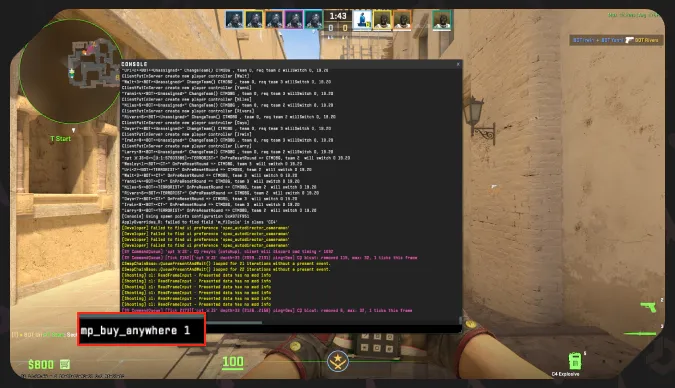
A general rule for most 1v1 CS2 console commands is to add the value 0 to return to the default settings.
It may be a good idea to save your set of commands to an autoexec file and then not bother with settings for your server each time you want to play 1v1 CS2.
- First, create a .txt file and add the console commands you’ve decided to use.
- Then save the file to the game folder here: game\csgo\cfg, with the name and extension autoexec.cfg.
To use this file, open the game settings in Steam and add +exec autoexec.cfg to the text bar in the CS2 launch options.
The Best CS2 1v1 Servers
Another option for solo fun in the game is joining CS2 1v1 servers. It may be helpful when your friend is busy or when you don’t want to host the server and prefer using pre-made variants. Follow these steps to find and join 1v1 servers CS2.
- Press the ‘Play’ button and click the globe icon in the upper menu.
- The pop-up window will show a wide variety of active servers. You may need to press the refresh button in the top right corner to see the list.
- Press the ‘Change Filters’ button in the bottom menu and add 1v1 to the ‘Server Name’ filter.
- Choose a server and start playing. Check the map of each server and the number of players there.
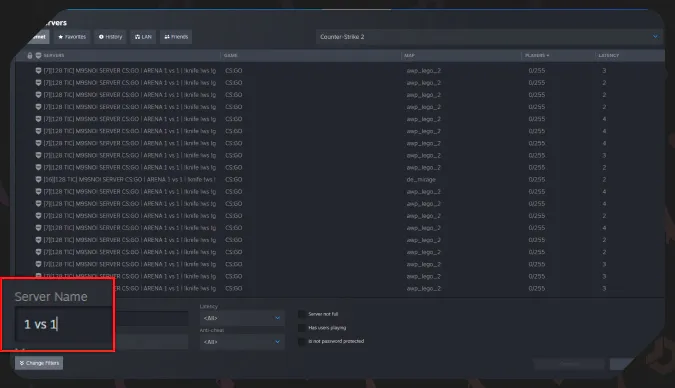
CS2 1v1 servers can also be used for matches with a friend if you both join one. The Servers window in the game has useful tabs, such as History and Favorites, so you will not need to look for those you’ve already played on.
With all the fun that 1v1 matches have to offer, don’t forget that this is just a small part of what makes Counter-Strike great. You definitely need to practice team actions. Take a look at our guide on how to play CS2 to see what else you need to become a good competitive player.
Everything helpful for your game progress is right here, on DMarket Blog. Don’t forget to check jump through bind in CS2 for better playing.
Trade on the go - install the mobile app of DMarket from Google Play or App Store. Never miss great prices and unique skins. The best CS2, Dota 2, Rust and TF2 marketplace is always at hand!
Follow us on and to get more CS2 posts!
Więcej w Poradniki CS2
- My Take on Fnatic's CS2 Shake-Up: Maden In, blameF to BIG
- IEM Atlanta 2026: Half the Superstars Stayed Home and Chaos Moved In
- Rust Molotov Cocktail Guide — Crafting, Usage, and Tips
- Explore Articles About CS2 – Latest News, Guides & Insights